No More Blank Page Stress: 4 Steps To Go from Scattered Thoughts to Polished Post with AI
Talking it out is an easy way to capture your thoughts and create great content—or other stuff. And you probably have everything you need on hand.

I got this tip from Christopher S. Penn a while back when he was talking about how he wrote his latest book and I’ve been using it a lot ever since. Stop staring at a blinking cursor on a blank page just start talking (and recording) your thoughts.
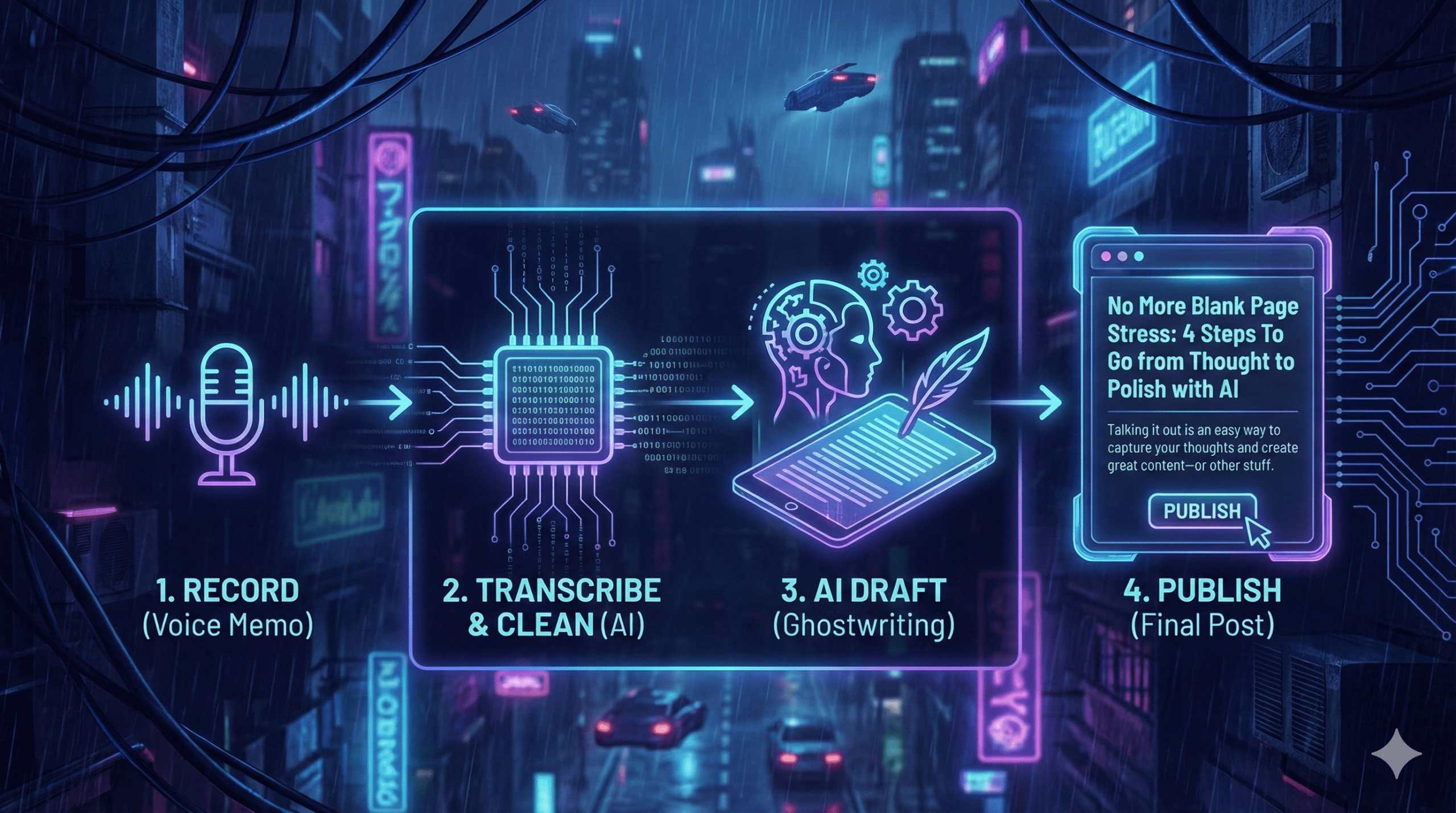
I record a lot of these posts now—almost all of them in fact for the past little while—as a voice memo on my iPhone or my Mac. Then I transcribe the voice memo, clean the transcript (with AI), and finally, I use a custom ghostwriting prompt (trained on my voice) to craft a draft.
In fact, that’s exactly how I’m writing this post (which is pretty meta).
Here is how I go from a jumbled stream of consciousness to a published post in four (mostly) easy steps.
Step 1: Just hit record
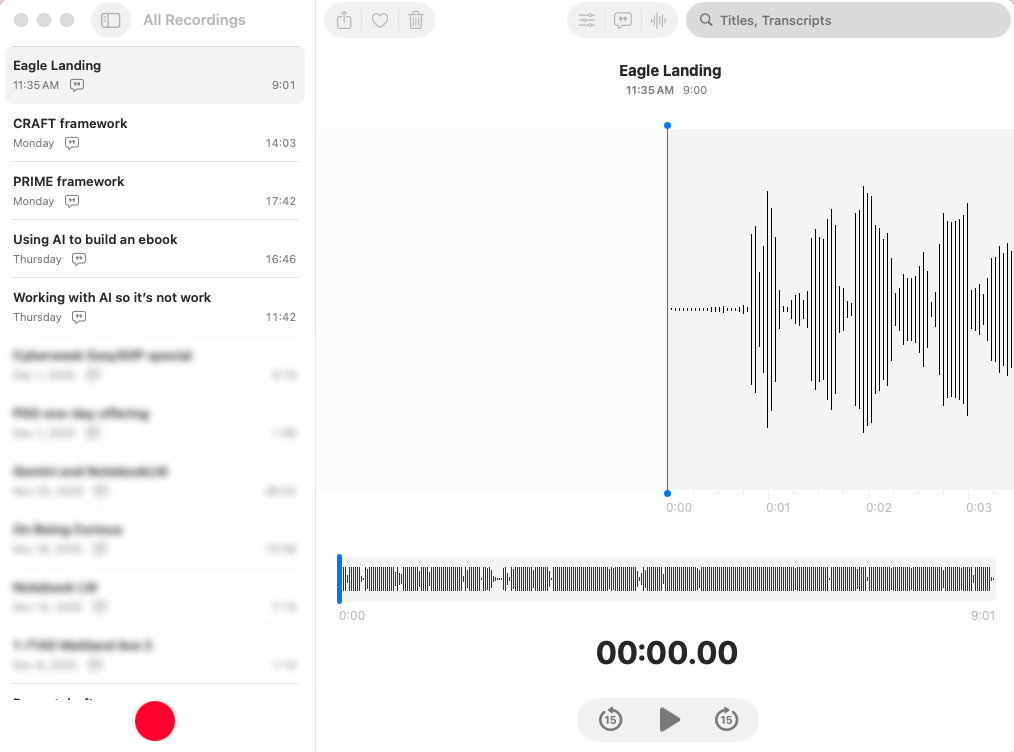
You know this part. I open up my iPhone or my Mac, fire up Voice Memos, and just hit record. Basic. Simple. Works. Then, I just talk for as long as I need to.
I go through my thoughts, and honestly, sometimes they’re pretty jumbled. Often they’re disorganized. There are usually a lot of filler words like “um,” “er,” “wait a minute,” and “hold on.” If I have to stop and start, that’s okay. I don’t worry about editing myself in real-time. I just get the raw ideas out. The “cleaning” step that comes later takes care of that stuff.
Step 2: The geeky way to transcribe
Step two is transcribing. Now, you could use any number of tools for this. You could upload the file to Gemini or ChatGPT and ask for a transcript, and it’ll work just fine. But I do it differently. I transcribe locally on my Mac using an open-source tool called Parakeet.
There are two reasons why I do this the “hard” way (it’s actually not that hard):
- It’s a geeky thing. I want to test as many things as I can running locally on my MacBook. It’s part of my workflow to understand the space well.
- Privacy. A lot of these recordings contain proprietary thoughts, draft posts, or original work that I really don’t want leaking out into public AI models—at least not until I’m done with them. Even though I pay for Gemini (which supposedly keeps my data private), we all know that once something goes on the internet, it’s forever. I prefer to keep my raw thoughts on my own hard drive.
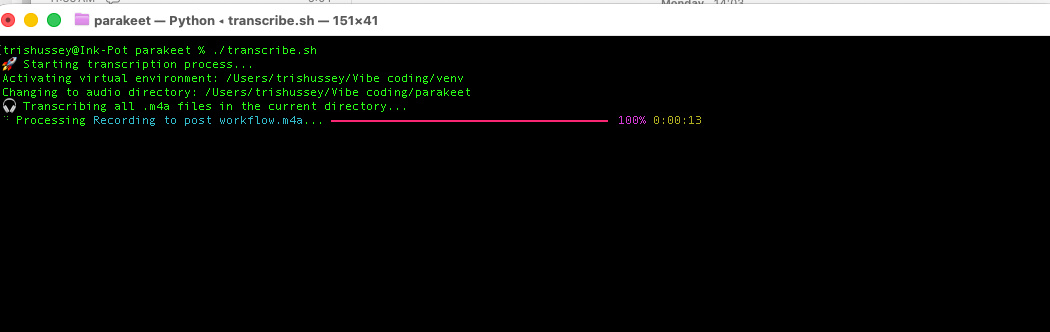
The workflow is pretty slick. I drag the file to a specific folder on my Mac (creatively named “parakeet”). I open Terminal and run a little script I wrote. In one fell swoop, it starts a virtual environment, launches Parakeet, and processes every audio file in the folder. It gives me a nice little progress bar and saves the transcript as a text file. This allows me to batch record a bunch of ideas and have them all waiting for me as text files when I’m ready to work. This recording was nine minutes and took about 10 seconds to transcribe.
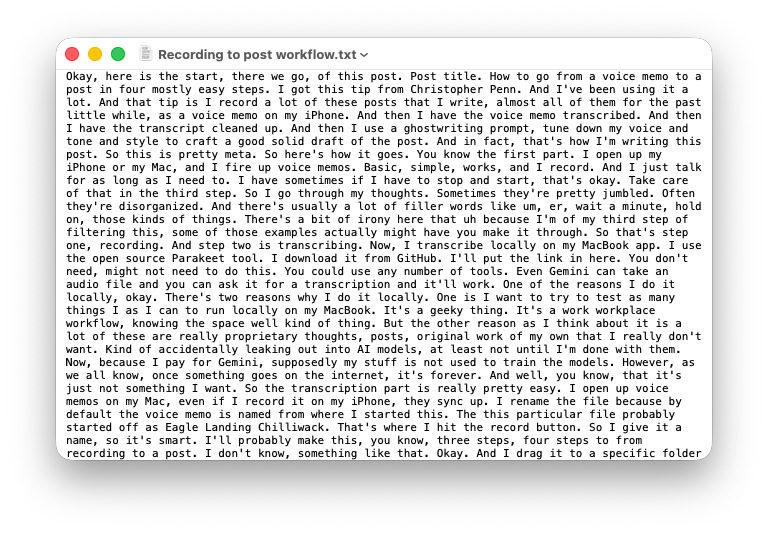
You’ll notice in the screen shot from Voice Memos above there is a Transcripts tab. Why not that? Well, frankly, I couldn’t find a way to nicely get the content out. So instead of fighting with it, I found a tool that just works.
Here is my parakeet command for transcription, I stick with the defaults because they work. The only thing I “change” is to look for all m4a files (the *.m4a part) and output as text.
parakeet-mlx .m4a --output-format txtSetting up parakeet isn’t hard, but if you’re not used to, or comfortable with, running things in Terminal on the command line; you might want to skip it.
Step 3: Let’s tidy this up
Raw transcripts are messy. Which for me is exactly the point. I don’t want to filter or censor myself. I just talk (and talk and talk) until I have the story out. This next step makes things a little easier to read.
Step three involves a prompt I wrote just to clean up the transcript. Its only job is to take out the “ums,” the “ers,” the false starts, and the times I say, “No, wait, let me say that differently.” I upload the transcript text file (I don’t even say “transcribe this”, just upload and hit return).
It applies a little bit of Markdown formatting, but—and this is critical—it is instructed not to change the meaning or the content. I’ve found I have to use Gemini in Thinking mode for this prompt to work. If I use the Fast mode, it tends to hallucinate or forget the instruction to leave the content alone, and it really messes with the transcript.
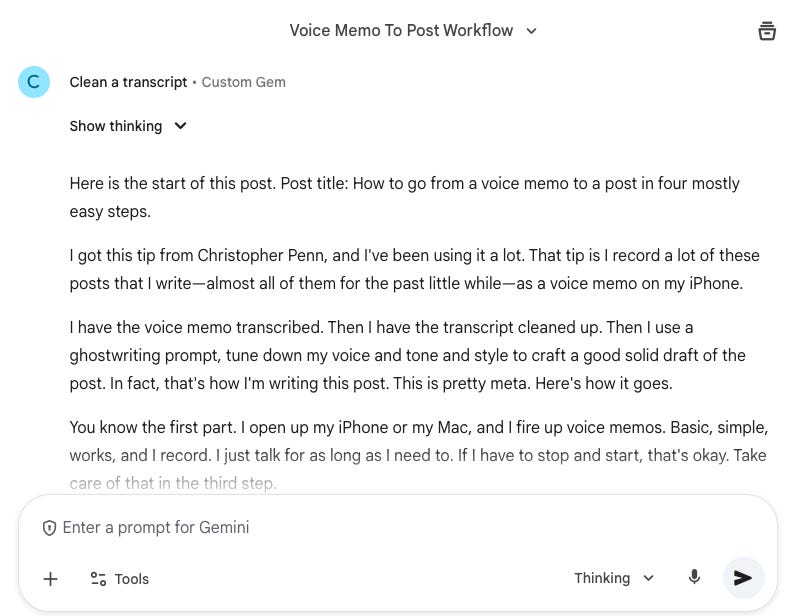
At this stage, I’m not looking for a polished post. I just want a clean output I can scan. Sometimes I’m not even writing a post; I might be outlining slides or drafting a prompt. I just need the noise removed so I can see the signal.
When Gemini is done I take the quickest of skims and hit the copy button.
Could I do this step locally too? Yes, I could, I just haven’t found the right model to give me an output as nicely as Gemini Pro does.
Great now, I have another local LLM rabbit hole to fall into. Thanks.
Here’s the transcript clean up prompt you can copy and paste to use for yourself:
You are an AI assistant tasked with cleaning a raw audio transcript. Your goal is to make the transcript more readable by removing conversational noise while strictly preserving the speaker’s original words and meaning.
Process the user-provided transcript below according to the following rules:
- Remove Filler Words: Delete all filler words and sounds, such as “um,” “uh,” “ah,” “er,” “like,” “you know,” “I mean,” and “so” when used as a pause.
- Eliminate False Starts and Restarts: Remove any abandoned phrases, self-corrections, or repeated words where the speaker corrects themselves. For example, “The problem with that thinking is, a brief is crucial not because it outlines let’s try this again. Uh A brief is crucial not just because...” should become “A brief is crucial not just because...”
- Consolidate Sentences: Combine fragmented sentences into complete, coherent sentences. Correct punctuation and capitalization to ensure proper sentence structure, but do not rephrase the content or change the original wording.
- Preserve Original Wording: This is the most important rule. Do not add, substitute, or paraphrase the speaker’s words. The final text should be a clean, verbatim representation of what was said.
- Apply Minimal Markdown: Separate distinct thoughts into new paragraphs. Use bold (text) for words or phrases that were clearly emphasized by the speaker. Do not add headings or lists unless the speaker explicitly outlines them (e.g., “The first point is... second...”).
- Return only the cleaned transcript in Markdown.
Step 4: The Ghostwriter
This is the final polish. This step comes from the great people at Trust Insights, who shared a method for training an AI to create a stylistic fingerprint for your writing. It analyzes your work to determine your average words per sentence, vocabulary density, and specific quirks. I took that analysis and built my “Ghostwriter” prompt.
I paste the cleaned-up transcript into the Ghostwriter prompt and hit enter. Again, I use a reasoning model for this to get the best results. Sometimes (often lately), I’ve been giving Gemini more instructions like “don’t shorten this” or “not so many cooking metaphors.” This time it was simple, copy, paste, return.
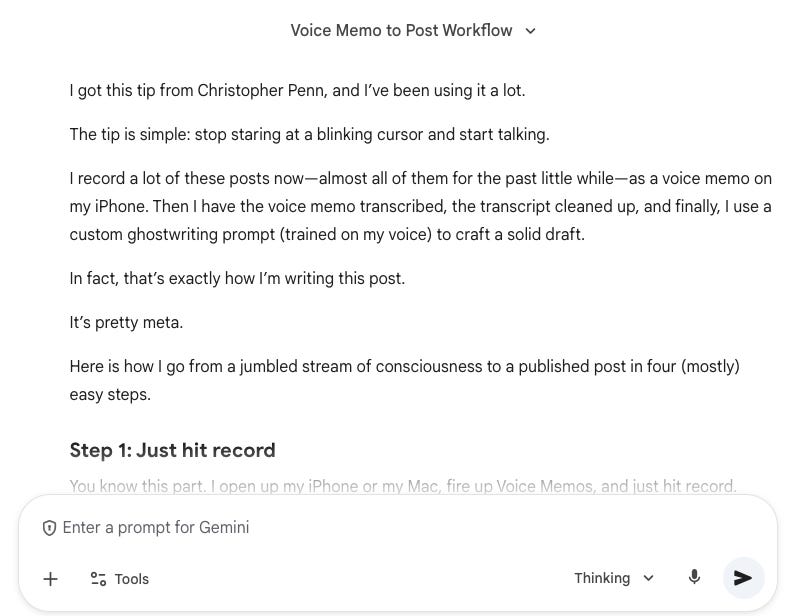
Is it perfect? No, not by any stretch of the imagination. It sometimes goes a little heavy on the analogies—I really need to edit the prompt to cool it with the cooking metaphors—and it sometimes takes liberties with how I would phrase things.
But it delivers a pretty darn good draft. It’s organized, the headings are usually set up right, and the emphasis is in the right places. It gets me 90% of the way there. It saves me from starting at the blank Ulysses window and lets me focus on the final edit—putting the “me” back into the text.
Editing and polish
I don’t think of this as a “step” as much as a “this is just what you gotta do” part of the process. Usually I stick with writing in Markdown in Ulysses (my favorite editor for over a decade), but if you’re using Gemini you can output to Docs or copy-paste into Word. Wherever you do your editing, that’s the final “step.”
Sometimes you just need to get out of your own way
That is how this post was written. Same exact steps. Same order. How long did it take me? About an hour (I wasn’t keeping track honestly). Here are the steps again for you:
- Record. Use Voice Memos or whatever simple recording tool you have handy. You don’t need voice correction or audio tuning or anything. Just record what I’m saying.
- Transcribe. Do it locally with a tool like parakeet or other tools like Wispr or even ChatGPT and Gemini.
- Clean. Take that messy transcript and clean it up a bit. Just a bit, don’t hack stuff out or change wording.
- Process. Sometimes, like this post, the output is a document. Other times it’s a prompt (or prompt to make a prompt) or an outline or even an idea. If it’s a post the cleaned transcript goes into my Ghostwriter. Other stuff…wherever the next step leads me.
If you’re stuck staring at a blank screen, maybe it’s time to stop typing and start talking. You have lots of ideas rolling around in your head. Just start capturing them. Give this a try and let me know how it goes for you.
Originally published at https://trishusseywriting.substack.com/p/no-more-blank-page-stress-4-steps