How to Use AI Every Day and Not Feel Like It’s Work: Part 2 the next five things
I didn’t think I’d have more to say, I guess I was wrong.
I didn’t intend for this to be a series, but as I was reading “Part 1,” I had some ideas that could answer “these are great, but what’s next?” I also keep thinking—and talking too much—about AI as the number one new skill people will have to learn ASAP at work.
Think back to when we all had to learn how to use computers. We had to figure out Word, Excel, and how to just use computers period. AI is going to be the next fundamental skill. It’s even more critical than when we had to learn how to use the internet and web browsers, because, honestly, if you learned how to use a computer, you could probably manage a web browser. AI is different. It requires a different way of thinking. Just like moving from paper and paper for most work, AI is a new mindset to embrace.
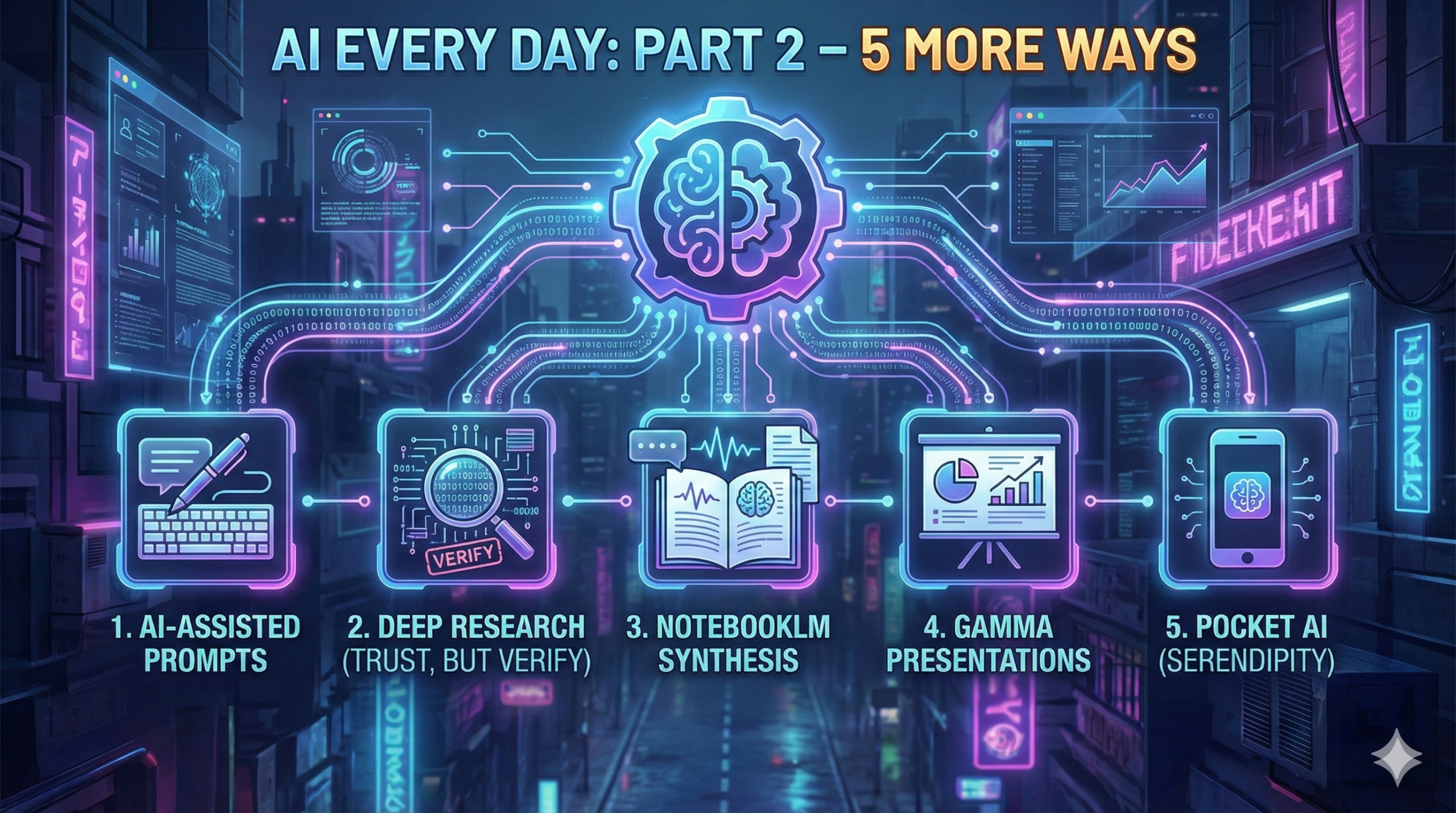
So, here is Part Two of the series I didn’t plan: five more tips on how to make AI part of your workday, so it doesn’t actually feel like work.
1. How do I write better prompts? Ask AI to write it for you.
This is the meta-step that a lot of people don’t realize is actually possible in the first place. When you’re trying to figure out how to ask an AI to do something, the best way to do that is to…well, ask it how to do it.
You definitely want to be in “thinking” mode for this—fast mode won’t cut it. As you start off, use the CRAFT framework I’ve talked about before, to say: “I want to do a thing with you as an AI. Here are all the things I want to accomplish. Help me write a prompt to make it happen.”
Then end it with: “Ask me one question at a time until you have enough information to complete the task at hand.”
Why? Because I almost every single time I’ve started building a prompt this way—even when I wrote 1,200 words describing the prompt I thought I needed—I left things out. I missed context. Having the AI ask you questions helps you refine what you’re looking for. The AI knows how to talk to itself to get the best results. Let it do the heavy lifting.
2. How do I get better results from Deep Research and use it more?
This dovetails right into tip one. Deep research is for many people, without a doubt, the most useful part of AI right now. It also has the biggest potential to change everything that you do.
But here’s the thing: sometimes you might do some deep research and be really disappointed in the results. It could be too thin, too much, or even completely wrong/made up/hallucinated. The secret is actually using tip one to help you. Until you get a feel for how to prompt for deep research really well, ask the AI to help you write your deep research prompt first.
For me, the hands-down best way to do this is to use the Trust Insights CASINO Framework. If you follow their framework and combine it with the “ask me one question at a time” trick, you get much better results. If you’re using Deep Research for the first time, pick a topic you know something about, enough that you can tell is something seems “off.”
While Deep Research has gotten a lot better this year alone, it can still hallucinate answers. If you’re doing research on a new subject, that’s where you’re at the most risk of missing a hallucination. It’s gotten to the point where a lot of hallucinations are subtle. You can’t tell it’s not correct unless you’re an expert in the space. I’ve asked marketing questions where I looked at the output and thought, “Hmm, this is kind of right… kinda not.” And when I dug in, I realized, “Oh, right, yeah, that’s not it at all.” But if I wasn’t a marketer? It would have passed the gut test.
So, use Deep Research. Use it to learn about companies, competitors, places you’ve applied for a job at, but don’t trust it 100%. Use it at first for things you’re reasonably aware of, so you can spot the errors. And always insist that it uses trusted, reliable sources.
3. How do I use NotebookLM to help me analyze and understand my research?
This is one of the few times I will recommend a specific AI tool to do a thing, but Google’s NotebookLM is in a class of its own. It started as a fun toy where you could upload a PDF and it would generate a “podcast” with two AI voices talking about it. It blew everyone’s mind. Well, now it’s even more mind-blowing. Creating slide decks, infographics, different kinds of reports—all powered by Gemini 3.0 and Nano Banana—it’s nothing short of an information power tool.
The power of NotebookLM is that it becomes a way to gather information about a topic that you want to learn more about, but—and this is the key—when you ask it questions, it will only pull answers from the sources you put in that notebook. So when you’re trying to get more insight about a document, you’re not going to get answers pulled from wherever—you only get things from that document. Need more inputs? Add them as sources.
Here is where tips two and three overlap: you can now have NotebookLM do deep research for you and not only will you get the report, but you’ll get links to all of the sources it used. This is important because it can’t “fake” a source. If the link doesn’t exist on the internet, it can’t be added as a source. It’ll fail. So if you see the links, you know they are legit.
I used NotebookLM extensively when I was completing the Chartered Marketers program (before all these new additions like slides and infographics). I threw all of the research I had done on my topic into a notebook and asked it to help me synthesize it into cogent points. Help me outline. Not do it all for me, but help me see the connections.
I’ve said it before, I believe that in 2026 we’re going to see NotebookLM become the dashboard for work, especially within Google Workspace.
4. How do I go from an outline to a slide deck? Try Gamma it’s magic.
Tip four is Gamma (affiliate link), and I love using this tool (and I pay for it). Gamma let’s you take an outline for a presentation and turn it into an actual presentation in just moments. And not just any presentation, a really spiffy looking one too. Until recently I only used Gamma for presentations, now I use it to create LinkedIn carousels, documents, and presentations.
You feed it your text, and it structures the narrative, picks the layouts, and even finds relevant images. Is it perfect on the first shot? No. But it gets you 80-90% of the way there in about 30 seconds.
Instead of fighting with layouts and font sizes, you’re editing a draft. It changes your workflow from “designing”—which is where I fall down a rabbit hole of “making the slide just right”—to “refining.”
I’m looking at the content. What does it say? Did Gamma flesh out the highlights from the outline well, or not so well? Sure I still get into the weeds sometimes with the design part, but only at the end and I often let Gamma use AI to generate more layout options for me.
5. How do I use AI when I’m away from my computer?
This might seem obvious—or maybe redundant—but download the mobile apps for whatever AI tools you are using. I have the mobile app for NotebookLM and Gemini right on my home screen. I have ChatGPT, Claude, and Perplexity in a folder right next to them.
Why? You can use AI when an idea strikes you, or when you’re in a jam—without needing your laptop. I’ve done all kinds of work just waiting in line somewhere. I had a few minutes, had an idea, opened Gemini, and captured it.
But the real magic is the multimodal stuff—like using the camera to figure stuff out. Here’s a real example with a car I just sold where I got a lot of solid information on what could be the solution to fixing a small problem with the car.
I was getting ready to sell my car and one of the headlights was out. I did the basic troubleshooting (replaced the bulb), but it still didn’t work. Next step, so said the internet, was to check the fuses. If you’ve ever looked at the fuse box in your car, you know it’s a nightmare. It’s kind of labeled, but not really. It’s a map of confusion. Little tiny fuses that are all different colors (for the amps they support). So to try to figure it out, I took a picture of the fuse box. I asked Gemini: “This is the make and model of my car. I’m looking for the headlight fuse. Can you help?”
And it was great. It looked at the image, discerned the layout, and put me right in the correct area. I double-checked with the manual’s diagram, and everything lined up. In the end I think it was the wiring, but I was able to tell the new owners which fuses dealt with headlights and that I had checked them.
Could I have done this by taking a picture with my phone, running inside, washing my hands (because car dirt), and using my laptop? Sure. But when I had more questions, I would have had to keep doing this dance. Because I had the app on my phone, I just did it there at the car.
A quick caveat on the apps:
The Google apps (Gemini/NotebookLM) can be a little finicky with uploads. It’s not obvious how to get a Google Doc into Gemini on mobile—you have to copy and paste the share link. Recently I’ve noticed some sync bugs between the desktop Gems and the mobile app recently. It’s annoying, but just be aware you might have to refresh your browser on the desktop to see what you did on your phone. Also if you do something with a Gem, save the responses to Docs on your phone just in case it doesn’t show up on your laptop.
Simple things that make using AI easier, more productive, and more fun.
Those are my five (additional) tips for using AI as part of your day, so it doesn’t actually feel like “work:”
- Use AI to write your prompts. My CRAFT framework will help you with this.
- Use Deep Research (trust, but verify).
- Use NotebookLM to synthesize research and ideas.
- Use Gamma to create presentations.
- Keep the apps in your pocket for the serendipitous moments of inspiration.
And here are the five tips from the first post:
- Keep the browser tab open
- Know when to search and when to use AI
- Find a few (good, smart) people to follow
- If you do it twice, save it for later (make Custom GPTs, Gems, and Artifacts)
- Don’t sweat it. Relax, if you’ve gotten this far with AI you’re doing great.
This is my last post for 2025, and I’ll see everyone in 2026. Hope everyone has a happy holiday season.
Originally published at https://trishusseywriting.substack.com/p/how-to-use-ai-every-day-and-not-feel-84b